
Hush Writer
A free, distraction-free writing app with AI that runs privately on your own computer. Just you, your words, and a little help when you ask for it.
Free · Windows 10 and 11 · macOS (Intel and Apple Silicon) · All releases
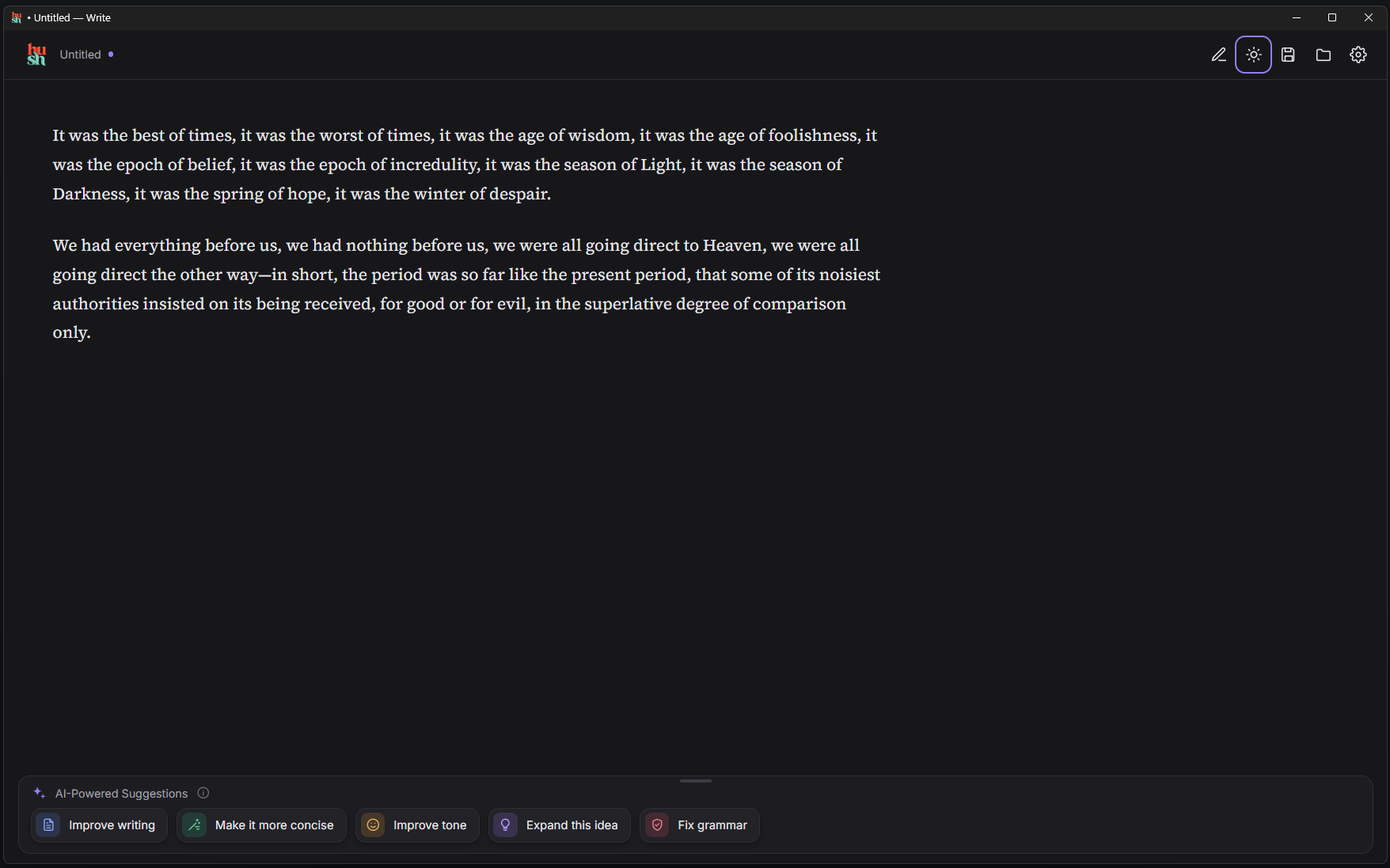
A quiet place to write
A clean page with nothing in your way. The formatting toolbar stays hidden until you need it.
Features
Everything you need to write well, and nothing that pulls you away from it.
Distraction-free editor
A centered page with rich-text formatting, headings, lists and images, and a toolbar you show only when you want it.
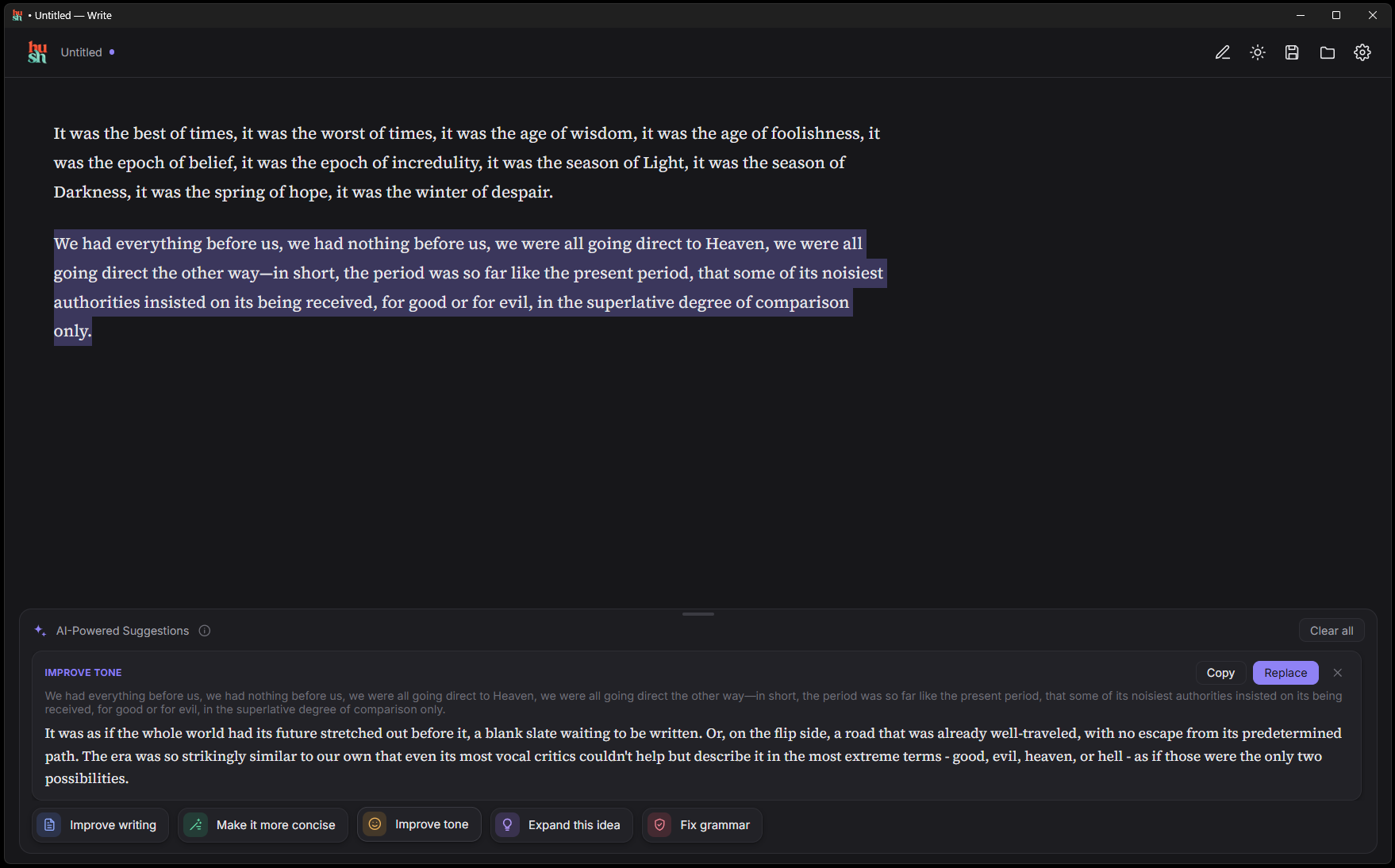
AI suggestions on demand
Select text, or just place your cursor in a paragraph, and pick an action. Results appear below so you can compare before replacing.
Press Enter to polish
Finish a line, press Enter, and get a suggestion for what you just wrote using your own custom prompt.
Word, text and HTML
Open and save .docx, .txt and .html files, with images embedded in your Word documents.
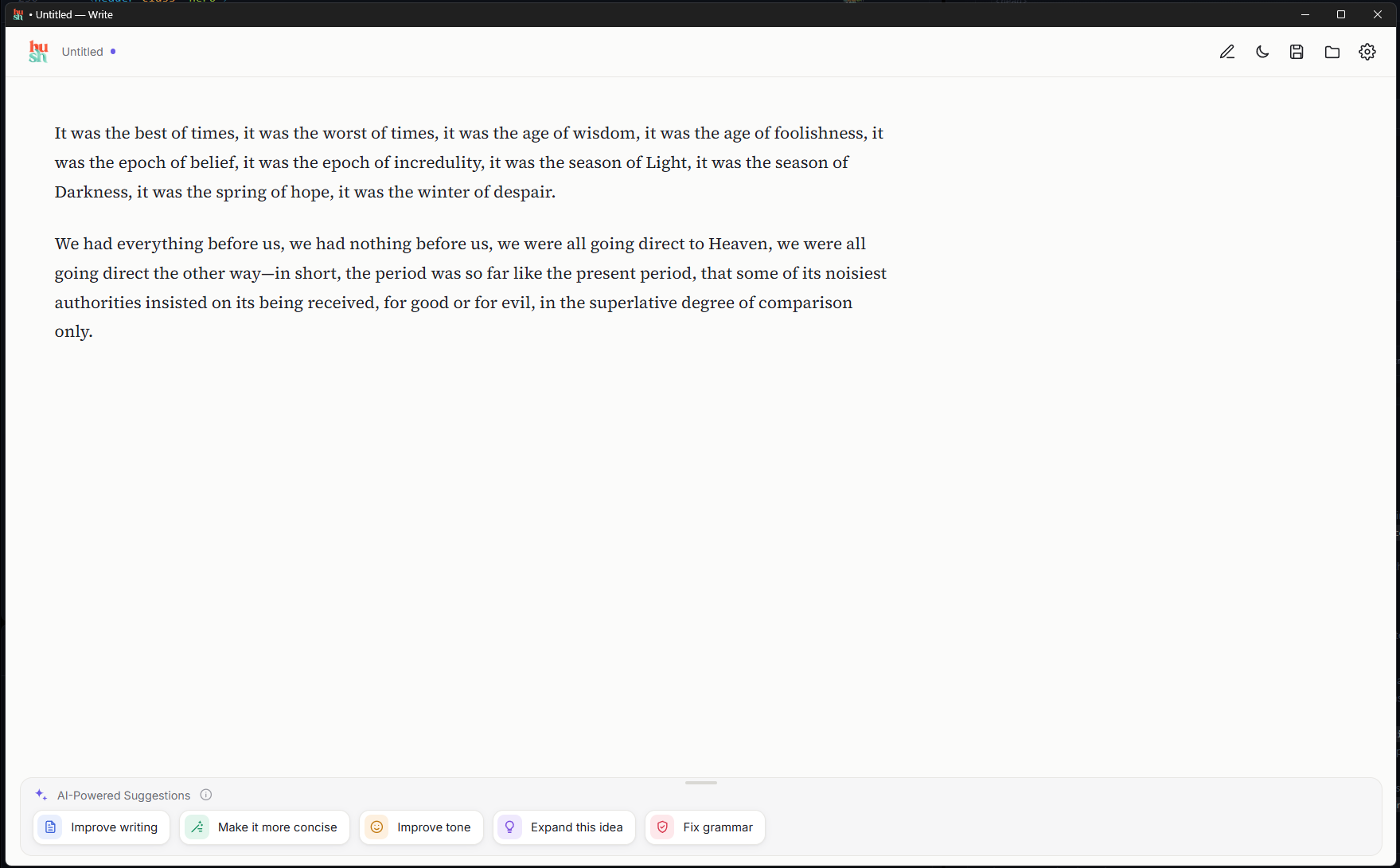
Light and dark themes
Follows your system setting, or choose the one that suits the hour.
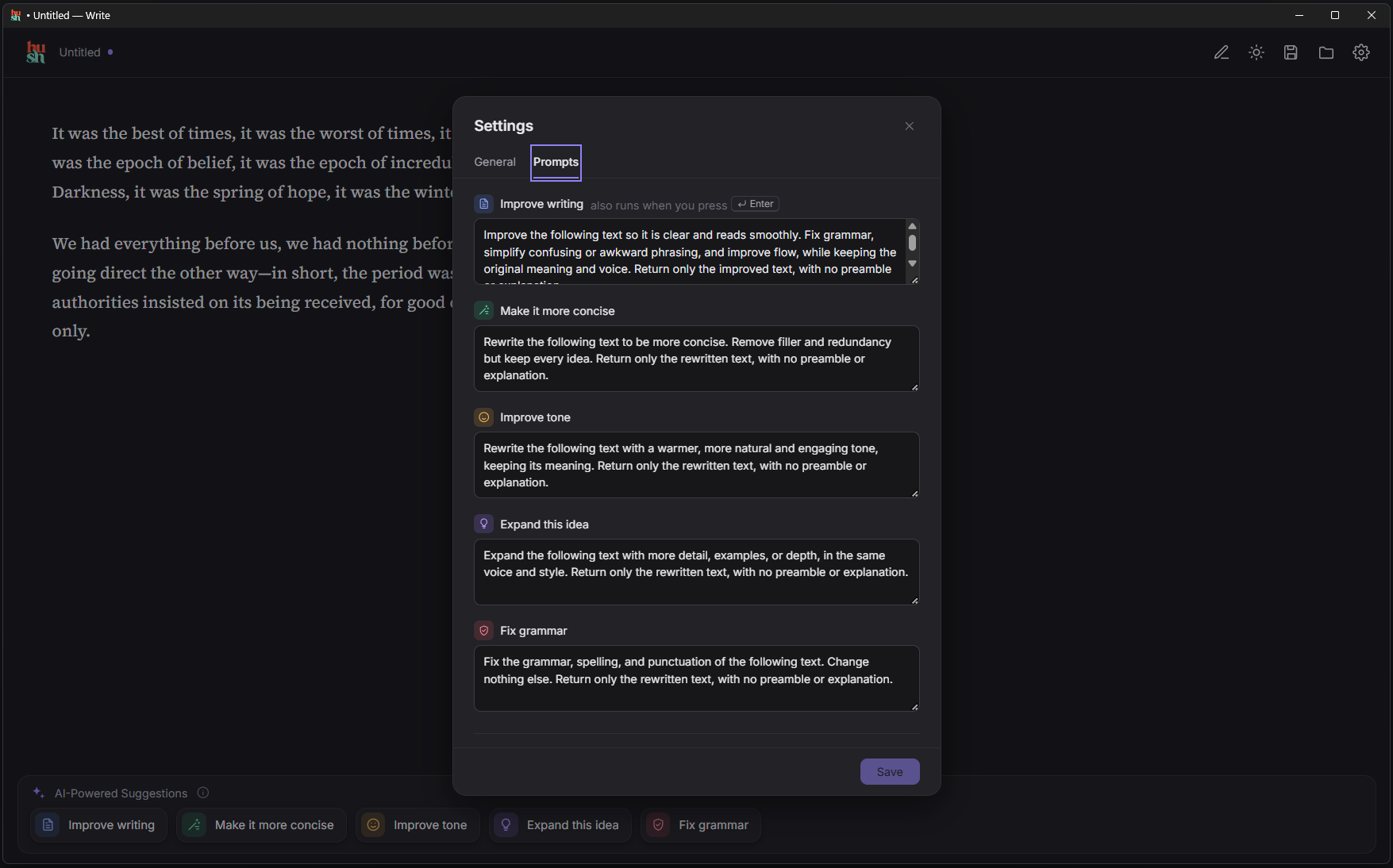
Your prompts, your way
Every AI action's prompt can be edited in Settings, so suggestions match your voice.
Choose your AI
Keep everything on your own computer, or connect to a cloud model you already use.
Ollama (local)
The default. Runs models on your own machine, so your writing never leaves it. Free, and works offline.
Other
Any CHAT service like ChatGPT or Claude or Gemini. Enter its address, model and API key.
Getting started
Up and writing in a few minutes.
- Download Hush WriterOn Windows, get
hush-writer.exefrom the button above. No installer is needed. Put it anywhere and double-click to run. On a Mac, download the zip, double-click it to unzip, and drag Hush Writer into your Applications folder. - Set up an AI providerFor private, local AI, set up Ollama (see Setting up Ollama below). Or open Settings in Hush Writer and add an OpenAI or Anthropic API key.
- Start writingType away. When you want help, select some text and pick a suggestion, or press Enter at the end of a line.
Hush Writer isn't code-signed yet, so Windows SmartScreen may warn you the first time you run it. Click More info, then Run anyway.
Hush Writer isn't signed by Apple yet, so macOS blocks it the first time. Click Done, then open System Settings → Privacy & Security, scroll down and click Open Anyway next to Hush Writer. You only need to do this once.
Setting up Ollama
Ollama runs AI models on your own computer, so your writing never leaves it. It's free and takes about 15 minutes to set up, most of which is waiting for the download.
- Download OllamaGo to ollama.com/download, choose Windows or macOS and download it.
- Install itOn Windows, run the installer and follow the prompts. On a Mac, unzip it and drag Ollama into Applications, then open it. Ollama then runs in the background, with a llama icon in the system tray near the clock (Windows) or the menu bar at the top of the screen (Mac).
- Open a terminalOn Windows, press the Windows key, type PowerShell and press Enter. On a Mac, press Cmd+Space, type Terminal and press Enter.
- Download the AI modelType this command and press Enter. The model is about 2 GB, so this may take a few minutes.
ollama pull qwen2.5:3b
- Start Hush WriterThat's it. Hush Writer already uses Ollama's standard address (
http://localhost:11434) and theqwen2.5:3bmodel, so there's nothing to change in Settings.
For the default model, at least 8 GB of memory and about 3 GB of free disk space. A graphics card makes suggestions much faster, but isn't required.
Choosing a different model
The default, qwen2.5:3b, is a good balance of speed and quality on most computers. Bigger models write better but need more memory and respond more slowly; smaller ones are quicker but make more mistakes. Pick one that fits your computer, download it with ollama pull, then enter its name as the model in Hush Writer's Settings.
| Model | Download size | Memory needed | Good for |
|---|---|---|---|
qwen2.5:0.5b | 0.4 GB | 4 GB | Very old or low-memory computers. Fast, but suggestions are basic. |
qwen2.5:1.5b | 1 GB | 4 GB | Laptops without a graphics card. Handles simple grammar fixes well. |
qwen2.5:3b (default) | 1.9 GB | 8 GB | Most computers. Good everyday rewriting at a reasonable speed. |
qwen2.5:7b | 4.7 GB | 16 GB | Noticeably better tone and flow. Best with a graphics card. |
llama3.2:3b | 2 GB | 8 GB | An alternative to the default from Meta, similar in size and speed. |
gemma3:4b | 3.3 GB | 8 GB | Google's small model. Natural-sounding English. |
llama3.1:8b | 4.9 GB | 16 GB | A well-rounded mid-size model from Meta. |
For example, to switch to the 7B Qwen model:
ollama pull qwen2.5:7b
Sizes are approximate and come from the Ollama model library, where you can browse many more models. You can keep several downloaded and switch between them in Settings; remove one you no longer need with ollama rm followed by its name.
- Make sure Ollama is running. Look for the llama icon in the system tray (Windows) or menu bar (Mac). If it isn't there, open Ollama from the Start menu or your Applications folder.
- Check the model is downloaded. Run
ollama listin PowerShell or Terminal. You should seeqwen2.5:3b. - Using a different model? Enter its name in Hush Writer's Settings, exactly as
ollama listshows it.
Frequently asked questions
Is Hush Writer free?
Yes. Hush Writer is free. Local AI through Ollama is free too; OpenAI and Anthropic charge for API use on your own account.
Does my writing get sent anywhere?
With Ollama, no. Everything stays on your computer. If you choose a cloud provider, the text you ask it to improve is sent to that provider.
Where are my API keys stored?
On your computer only, in the app's local settings. They are sent only to the provider you chose.
Which port does Ollama use, and how do I check it?
Ollama uses port 11434 unless you've changed it, and Hush Writer connects to http://localhost:11434 by default, so most people don't need to do anything.
To check, open http://localhost:11434 in your browser. If it says “Ollama is running”, you're all set. If the page doesn't load, make sure Ollama is running, then run this in PowerShell:
echo $env:OLLAMA_HOST
or this in Terminal on a Mac:
echo $OLLAMA_HOST
If nothing is printed, Ollama is on the default port. If you see an address such as 0.0.0.0:8080, open Settings in Hush Writer and set Ollama host to http://localhost:8080, using the port number shown.
What do I need to run it?
On Windows: Windows 10 or 11 with Microsoft's WebView2 runtime, which comes with Windows on almost all machines. On a Mac: a recent version of macOS, on an Intel or Apple Silicon Mac.
Is there a Linux version?
Not yet as a download, but the app can be built from the source code.